Quoting and booking templates in the UPS® Forwarding Hub simplify your shipping process by reducing repetitive data entry, minimizing errors, and maintaining consistent shipment details.
These templates help you manage frequent shipments with greater speed and reliability.
Discover how to create and save templates to streamline your logistics workflow.
How to Create and Save a Quoting & Booking Template
There are two ways to save a quoting and booking template.
1) While Creating a Quote & Booking a Shipment
Follow these steps when requesting rates:
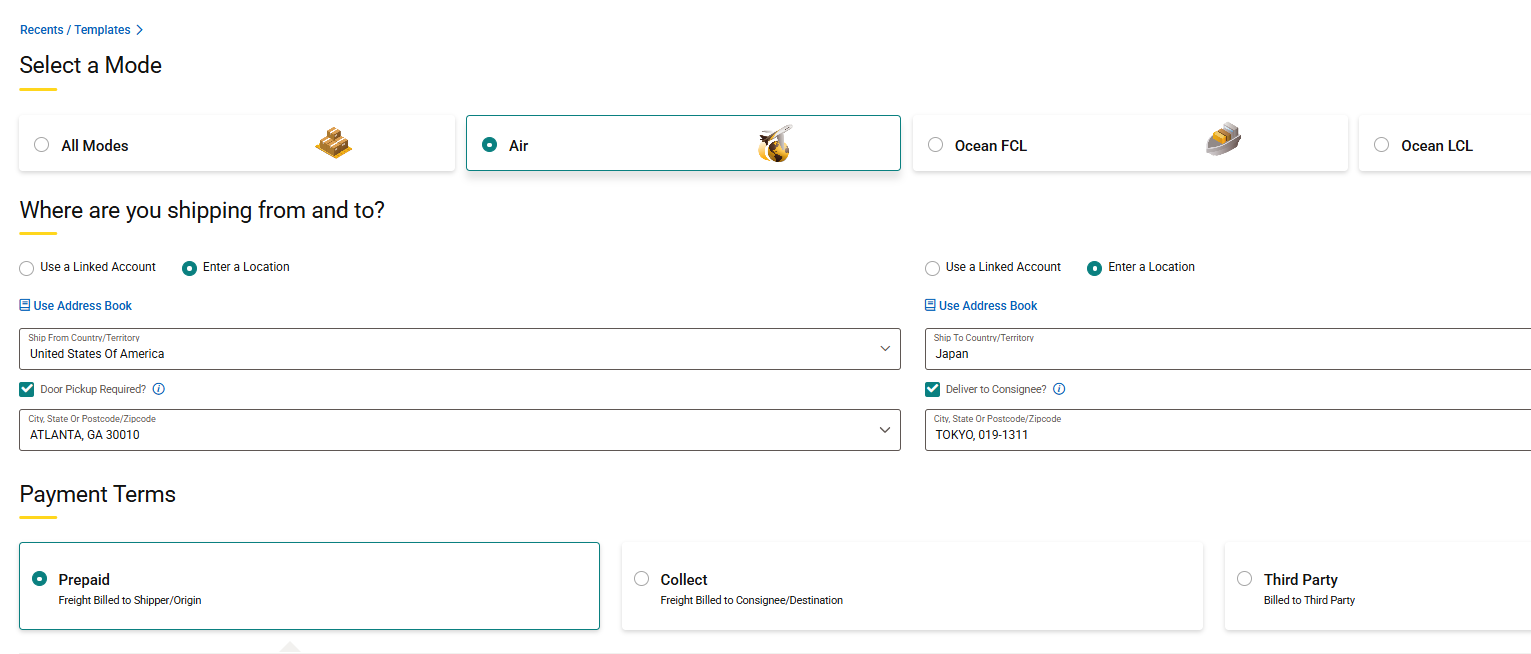
Enter all your shipment details
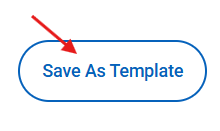
Before submitting the request, look for the "Save as Template" option at the bottom of the page.
Give your template a name!
That's it, now all your quote information is saved for future use.
Follow these steps when booking your shipment:
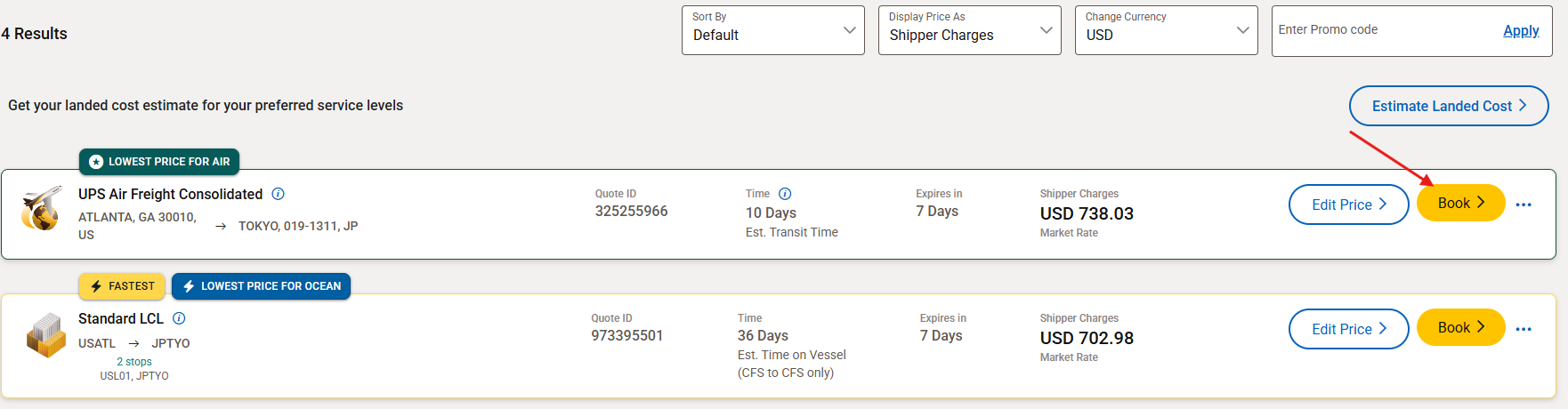
Select the 'Book' option on the rate screen

Before submitting the request, look for the "Save as Template" option at the bottom of the page
Give your template a name!
That's it, now all your quote and booking information is saved for future use.
2) From the UFH Dashboard
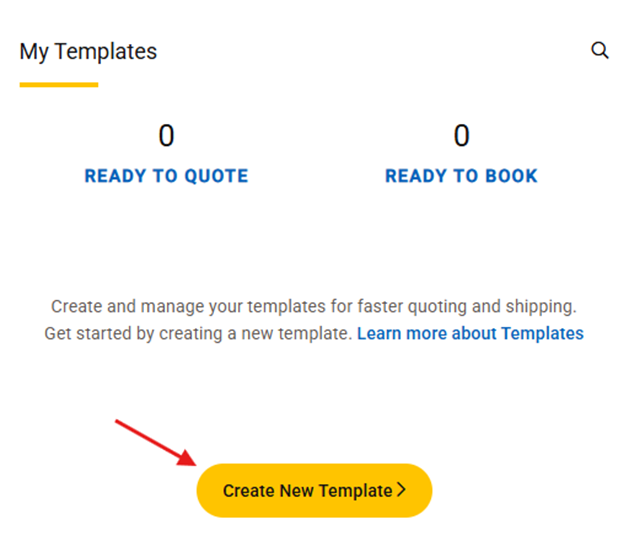
Visit your 'UFH Dashboard'
Locate the 'My Templates' tile
Click 'Create New Template'
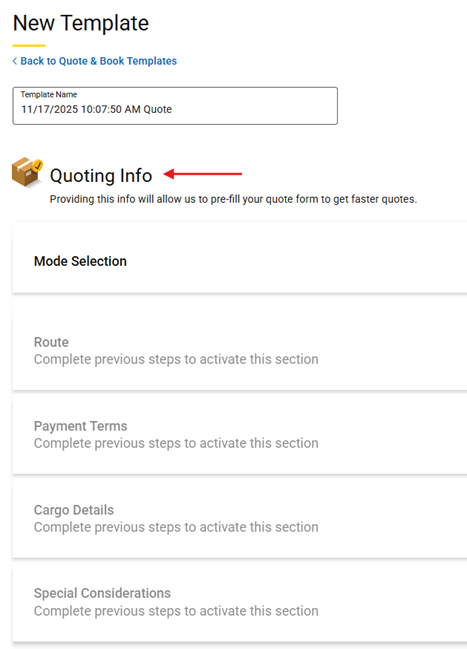 Choose a 'Template Name'
Select each section and 'Update the Following Information'
- Mode Selection
- Route
- Payment Terms
- Cargo Details
- Special Considerations
At this point, you can stop here and save the quote information, or continue adding booking information.
Add the booking information:
 Click 'Add Booking Info"
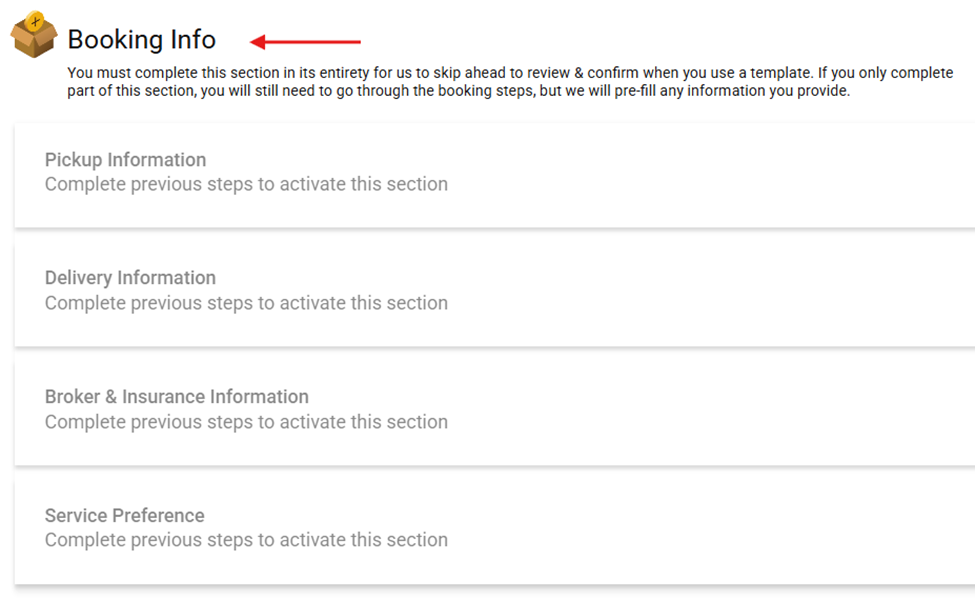 Select each section to 'Update the Following Information'
- Pickup Information
- Delivery Information
- Broker & Insurance Information
- Service Preferences
Click 'Save' to create the quote and/or booking template
That's it, now all your quote and booking information is saved for future use.
Learn More
Was this article helpful?
That’s Great!
Thank you for your feedback
Sorry! We couldn't be helpful
Thank you for your feedback
Feedback sent
We appreciate your effort and will try to fix the article