Overview
Review the Authorized Users associated with your profile regularly to help keep account access current and secure. During the review period, you can confirm users who still need access or remove users who no longer require access to your UPS Forwarding Hub profile.
Completing the review helps maintain accurate account permissions and ensures only the appropriate users continue to have access to your account.
When to Use This
Use this article if:
- You received an Authorized User review notification.
- You need to confirm who can access your profile.
- You want to understand what happens when Authorize User access is approved, denied, or expires.
- An Authorized User can no longer access your profile.
Before You Begin
Make sure you have:
- Access to your UPS Forwarding Hub account.
- Permission to manage Authorized Users for the account.
- A list of users who should or should not continue to have access.
Important
Complete your Authorized User review withing 30 days. If any users remain pending after the review period ends, a 7-day extension begins automatically. Users who remain pending at the end of the extension period may lose access to your profile.
Review Authorized Users
- Sign in to UPS Forwarding Hub.
- Open the notification requesting an Authorized User review.
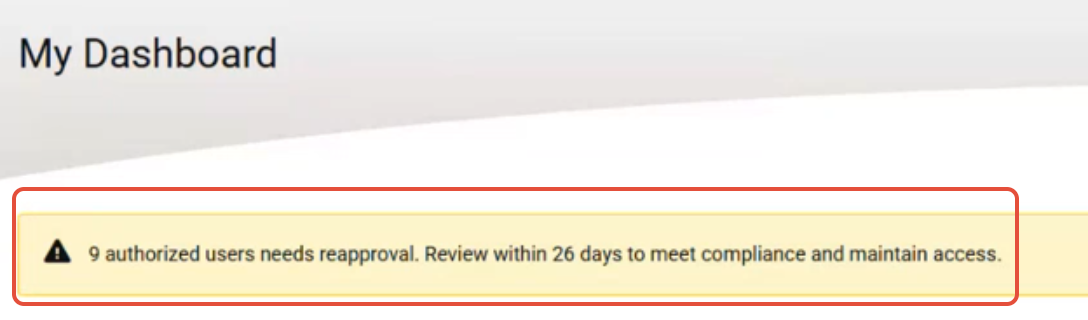
- Select the notification or navigate to the Authorized Users page.
- Review each Authorized User requiring action.
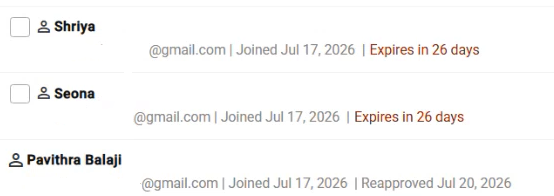
- Select Approve for users who should continue to have access.
- Select Deny for users who should no longer have access.
- Save your changes.
What Happens Next
If You Approve a User
- The Authorized User keeps access to your profile.
- The Authorized User remains active.
- The Authorized User does not receive an approval notification and continues to have access.
If You Deny a User
- The Authorized User immediately loses access to your profile.
- The Authorized User receives a notification that access has been removed.
If No Action Is Taken
- You have 30 days to complete your review.
- Reminder notifications may be sent during the review period.
- A 7-day extension period may begin if users remain pending after the review period ends.
- Pending users may automatically lose access when the extension period ends.
How Long Do I Have to Complete My Review?
Initial Review Period
When the review cycle begins, you have 30 days to review Authorized Users and take action.
During this time, you can:
- Approve users who still need access.
- Deny users who no longer need access.
- Return later and complete the remaining review before the deadline.
Extension Period
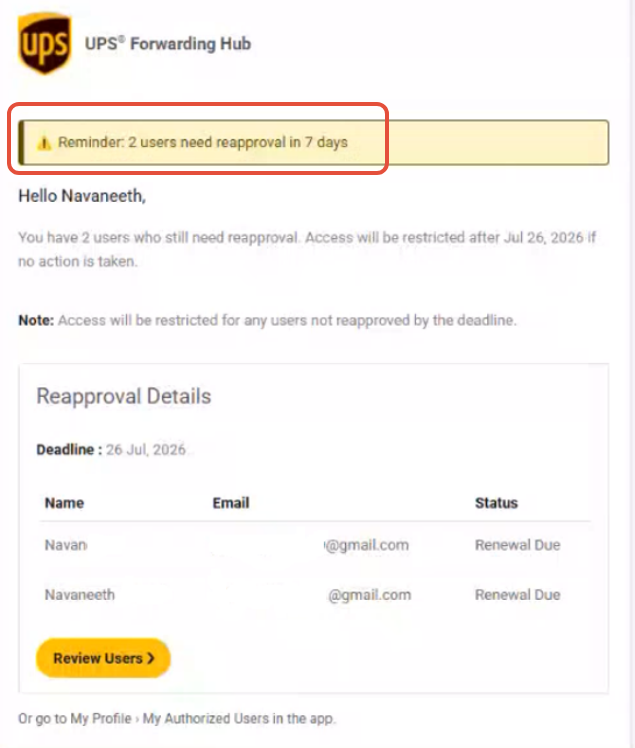
If one or more users remain pending after the initial review period, a 7-day extension period begins automatically. You can still review and take action during this time.
Automatic Access Removal
If you do not review an Authorized User before the review period ends, that user will automatically lose access to your profile. Once access is removed, the user can no longer act on your behalf in UPS Forwarding Hub.
Frequently Asked Questions
Why did I receive an Authorized User review email?
You received this email because it is time to review the users who can access your UPS Forwarding Hub profile. The review helps ensure account access remains current and accurate.
What is an Authorized User?
An Authorized User is a person who has been granted permission to access and perform actions on behalf of another user's UPS Forwarding Hub profile.
What happens if I do nothing?
If no action is taken during the review period and extension period, any users that remain pending may automatically lose access to your profile.
Do approved users receive an email?
No. Users who are approved keep access and do not receive an approval notification.
Can I add someone back after access is removed?
Yes. If a user loses access because access was denied or the review period expired, you can add the user again through the standard Authorized User process.
Why am I reviewing users who already have access?
The annual review helps confirm that existing access is still needed and appropriate. Regular reviews help keep account access accurate and up to date.
An Authorized User says their access was removed. What should I do?
- Review your Authorized Users list.
- Determine whether access was denied or expired.
- Add the Authorized User again if access is still needed.
Related Articles
Was this article helpful?
That’s Great!
Thank you for your feedback
Sorry! We couldn't be helpful
Thank you for your feedback
Feedback sent
We appreciate your effort and will try to fix the article