 Overview
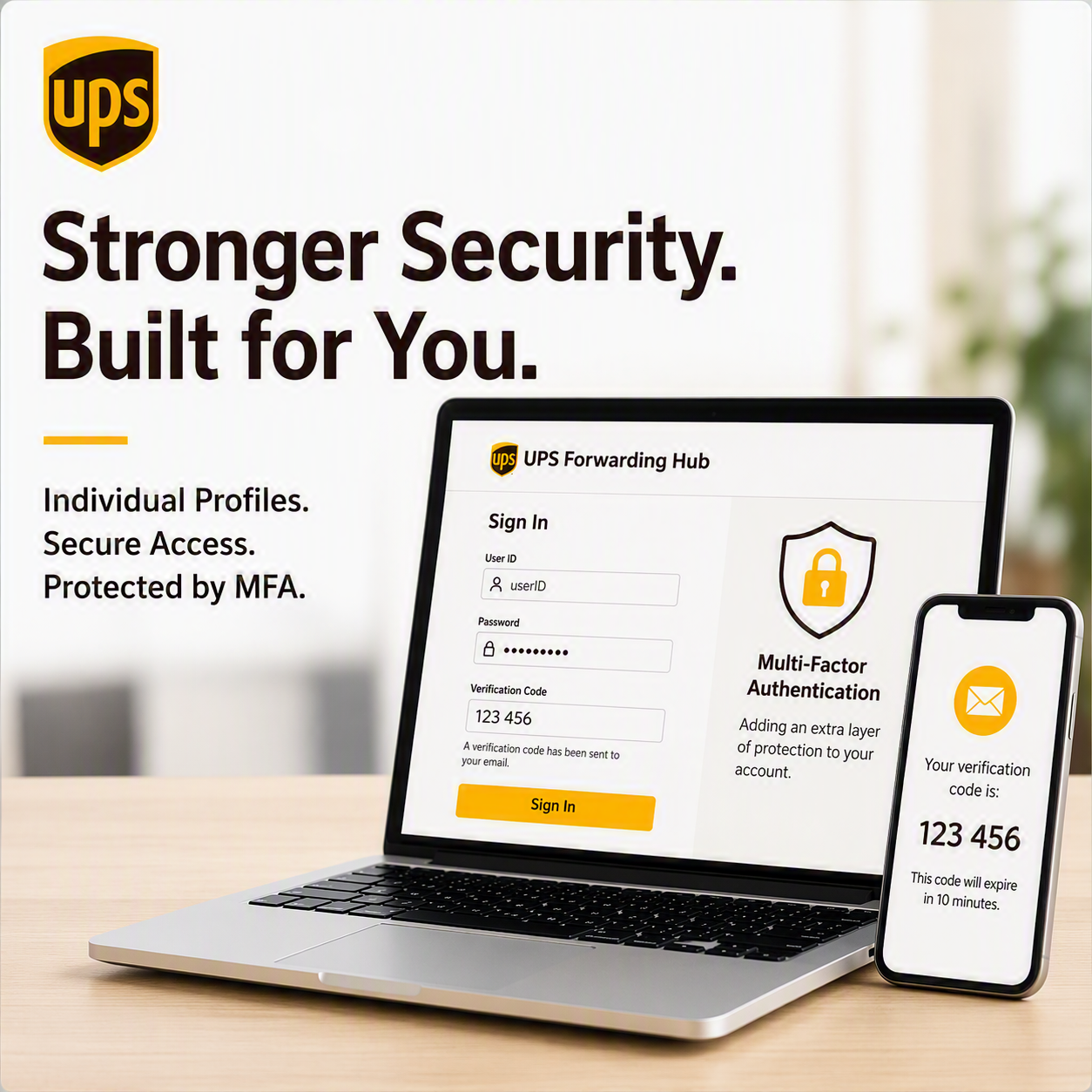
Effective September 6, 2026, UPS is strengthening account security by transitioning customers from shared login credentials to individual user profiles secured by Multi-Factor Authentication (MFA).
If multiple people in your organization currently use the same UPS Forwarding Hub (UFH) username, password, or email address, each user will need their own individual profile.
Using individual profiles helps improve account security, provides user-level accountability, reduces the risk of unauthorized access, and prevents team-wide lockouts caused by password changes or resets.
When to Use This
Use this guide if:
- Two or more people in your organization use the same UPS Forwarding Hub username, password, or email address.
- Your team accesses UPS Forwarding Hub using shared login credentials.
- You received a UPS communication advising that Multi-Factor Authentication (MFA) will be enforced for your login credentials.
Shared login credentials will no longer be supported as MFA enforcement is implemented.
Before You Begin
Make sure:
- You have a unique email address.
- You are using an email address that you personally control.
- The email address isn't already associated with another UFH profile.
- Each user in your team has their own UFH profile.
- You complete UFH profile setup before the MFA enforcement date to prevent sign-in interruptions.
- You have your company's UPS account number and address, just in case you need it to link accounts to your new profile
Make sure you understand:
- This change takes effect, September 6, 2026, and MFA will be required when you sign in.
- A one-time verification PIN will be sent to your registered email address during MFA sign-in.
- MFA helps protect profiles from unauthorized access and improves overall access security.
- Only the sign-in process is changing, and your organization's UPS accounts will continue to function normally after migration.
- Multiple individual user UFH profiles can be associated with the same company account number.
How to Create Your UFH Profile & Authenticate
To avoid disruptions when MFA is enforced, complete these steps before September 6, 2026.
Step 1: Create an Individual UFH Profile
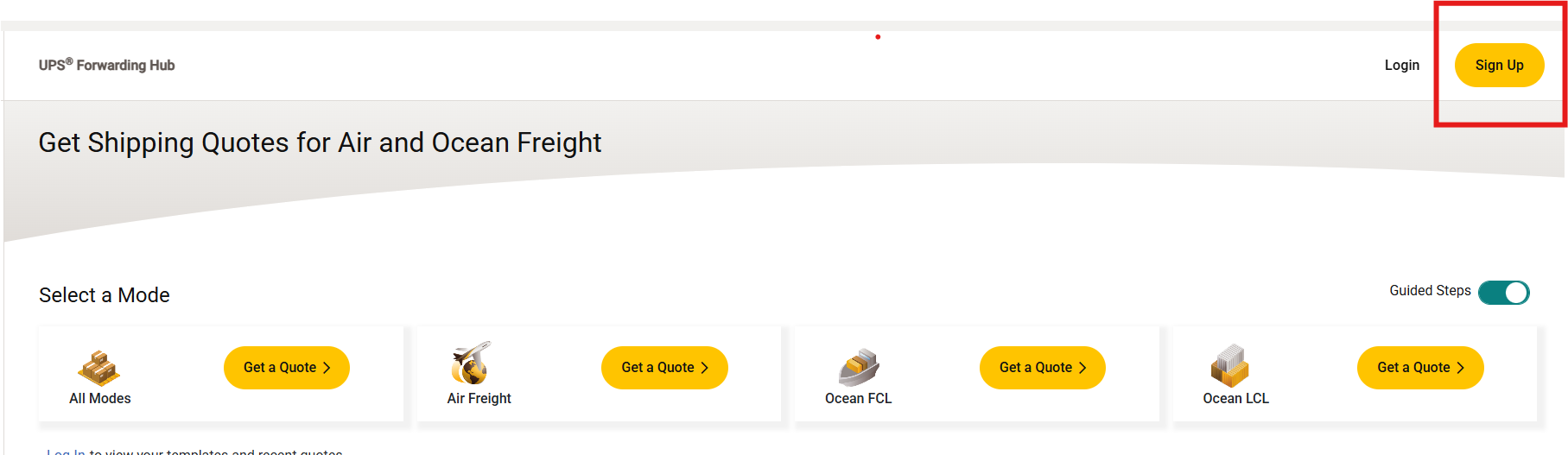
- Go to UPS Forwarding Hub.
- Select Sign Up.
3. Enter:
- First and last name
- A unique email address
- A unique User ID
- A password
4. Accept the UPS Technology Agreement and continue registration.
Step 2: Verify Your Email Address
- Check your inbox for the verification email from UPS.
- Enter the verification code provided.
- Complete profile activation.
If you do not see the email, check your spam or junk folder or request a new verification code.
Step 3: Complete Multi-Factor Authentication (MFA)
- Sign in to your UPS Forwarding Hub profile using your User ID and password.
- Retrieve the one-time verification PIN sent to your registered email address.
- Enter the verification PIN when prompted.
- Complete the sign-in process.
MFA provides an additional layer of security and helps protect your account from unauthorized access.
Setup Your New UFH Profile
Step 1: Link Your Profile with Your Existing UPS Account
- Sign in to your new UPS Forwarding Hub profile.
- Visit your UFH Dashboard.
- Locate the Profile Setup tile and select Link an Existing Account Number.
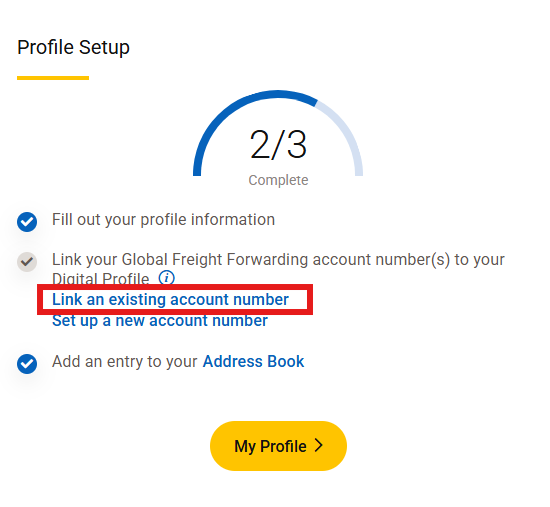
- Follow the prompts and security verification to add your UPS account number. You may be asked to provide your company's account number during this process. Existing UPS accounts remain tied to your organization and can be associated with multiple individual user profiles.
Only UPS Freight Account numbers can be linked.
Step 2: Add an Authorized Profile User
- Sign in to UPS Forwarding Hub.
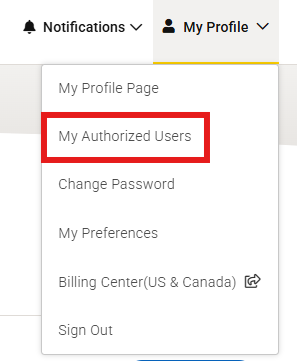
- Select My Profile.
- Select My Authorized Users.
Step 3: Create an Invitation
1. Select Invite New.
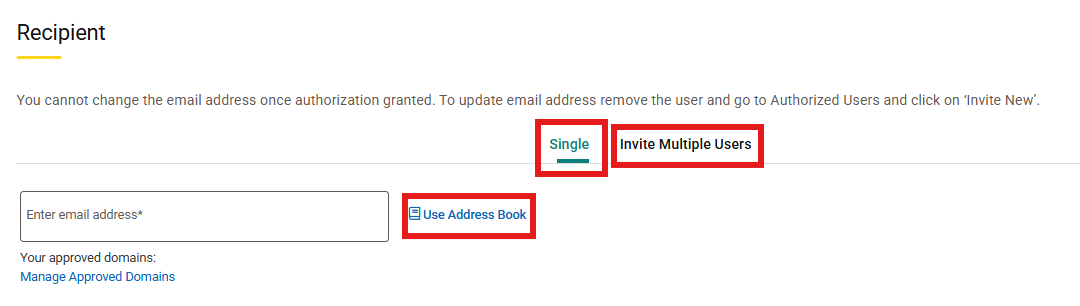
2. Under Recipient, choose one of the following:
- Single User: Enter one email address.
- Multiple Users: Select Invite Multiple Users and enter multiple email addresses separated by commas.
- Address Book: Select Use Address Book to choose an existing contact
Step 4: Configure Permissions
1. Before sending the invitation, choose the permissions the user should have.
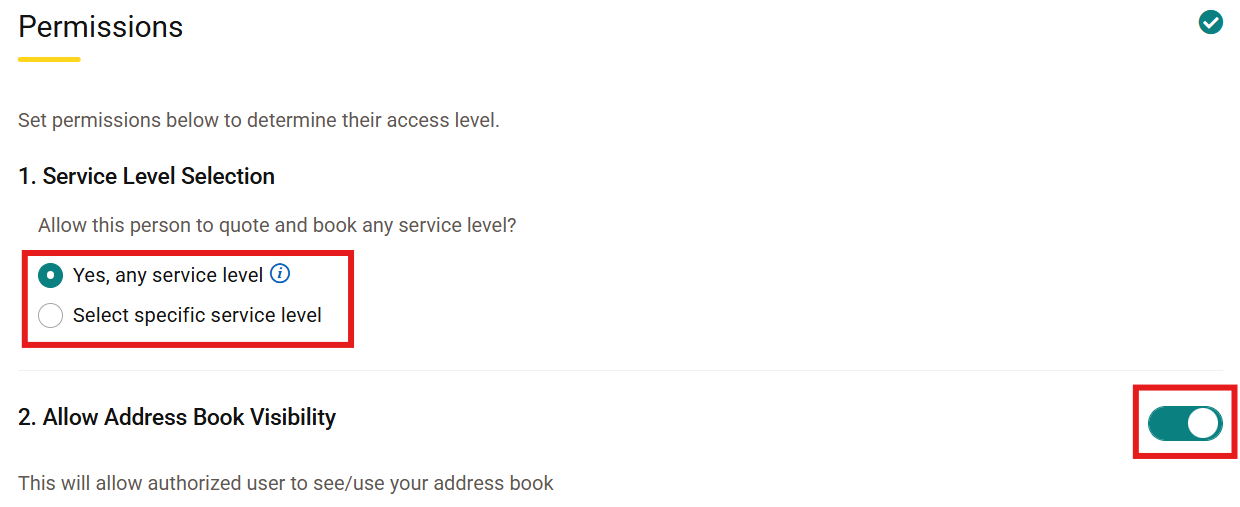
2. Follow prompts to save and update your authorized user.
Frequently Asked Questions
Why can’t multiple people continue using one UFH profile?
Shared credentials make it difficult to verify who is accessing an account, increase security risks, and can create operational issues when passwords or email addresses are changed. Individual profiles provide better security, accountability, and user management.
Will we lose our UPS shipping accounts or negotiated rates?
No. UPS shipping accounts remain active and associated with your organization. Rates, billing arrangements, and existing services are not affected by the move to individual user profiles.
Does every user need a unique email address?
Yes. Each UFH profile requires a unique email address for identity verification, account security, and MFA authentication. Shared email addresses are not supported for MFA enrollment.
We have many users. Do they all need individual profiles?
Yes. Each user must have their own UFH profile.
Can our organization use Single Sign-On (SSO)?
Eligible enterprise customers may use Federated Single Sign-On (SSO), allowing users to authenticate with existing corporate credentials.
Contact your UPS Account Manager to discuss eligibility and onboarding requirements.
What should I do if I do not receive my MFA verification PIN?
- Confirm you are checking the email address associated with your UFH profile.
- Check spam, junk, or filtered email folders.
- Request a new verification code.
If the issue persists, contact UFH Technical Support or click 'Help' on the bottom right side of the screen in UFH for assistance.
Related Articles
- Add, Remove and Edit Authorized Profile Users
- How to Link Your Freight Account Number
- Create a Quote & Book Template
Was this article helpful?
That’s Great!
Thank you for your feedback
Sorry! We couldn't be helpful
Thank you for your feedback
Feedback sent
We appreciate your effort and will try to fix the article