TABLE OF CONTENTS
What is an Action Required Alert?
An Action Required alert notifies you that your shipment needs additional information, documents, or payment before processing and pickup can continue. You will receive a daily summary email notifying you of outstanding holds, and active holds will also be displayed on your UPS Forwarding Hub dashboard.
Find Your Action Required Alerts
Option A: From Your Email | |
| 1. Open the daily summary Email Notification sent by UPS Forwarding Hub (UFH). | (Click to enlarge) 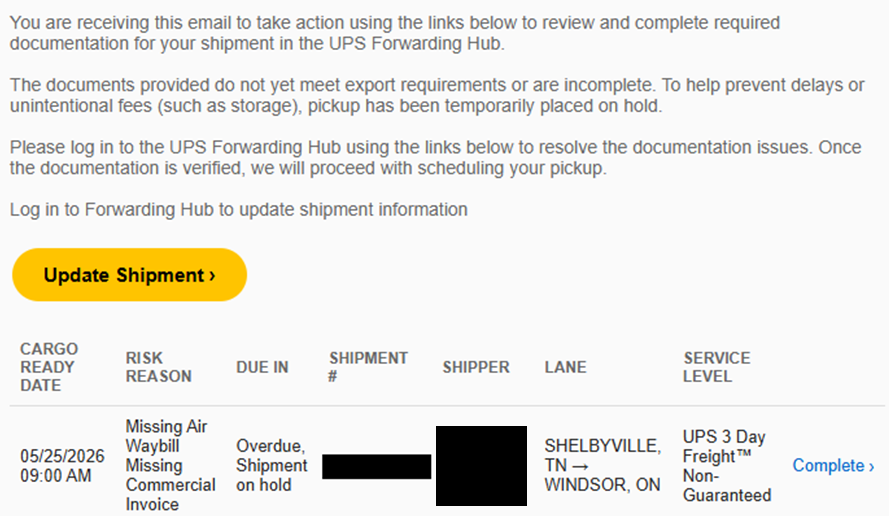 |
| 2. Click the Update Shipment or Complete link. | |
| 3. Log in to UFH. You will see the shipment that needs action. | |
Option B: Check Your Dashboard | |
1. Login to UPS Forwarding Hub, then go to the Dashboard. | |
2. Click on the Overview tab. | |
3. Locate the Action Required list.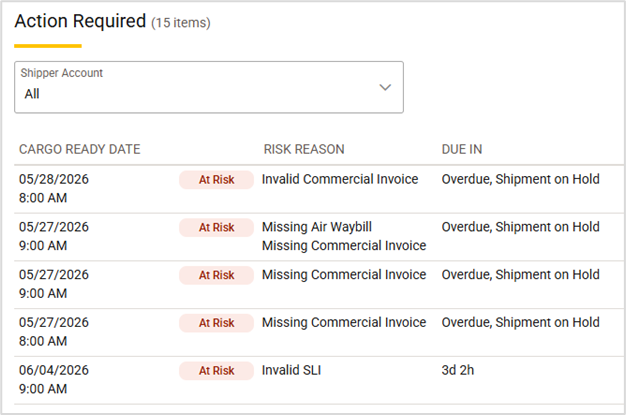 |

Understand the Risk Reasons
Each shipment in the Action Required list shows a risk reason, along with a due in status. These statuses tell you exactly what needs to be fixed, and the current status of the action required and the status of your shipment.
Common Risk Reasons and What to Do:
Once you understand the risk reason it's important to handle unresolved items promptly to avoid your shipment being place on hold.
Resolve the Issue
Once you have opened the shipment and reviewed the Risk Reason, follow these steps:
2. Review the Risk Reason to identify the issue.
 3. Click Upload to view the shipment you need to take action on or use the 3-dot action menu (...) to choose the appropriate fix:
- Upload: Upload a missing or corrected document directly from your computer.
- Complete Online: Fill out missing document details directly within the Hub.
- Edit Shipment: Correct mismatched shipment details.
- Share Shipment: Share the shipment with a third party so they can supply the required documentation on your behalf.
- Complete Prepayment: Submit your credit card payment securely to release the payment hold.
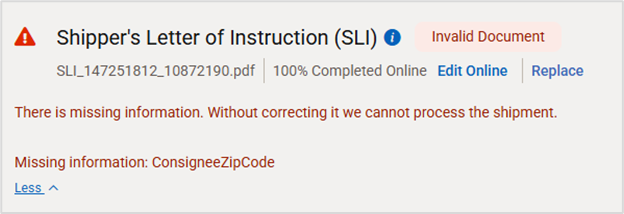
Listed required items will display the checkmark icon  after they are resolved.
5. (Optional) Upload any recommended or additional required documentation: Depending on your shipment’s commodity, route, and destination, you may need to provide more documents (such as Dangerous Goods declarations, Certificates of Origin, or government filings).
6. Print the shipment documents so the pickup driver can sign them upon receipt of the cargo.
7. Click Submit shipment once all required documents are complete, to proceed with processing the shipment.
Frequently Asked Questions |
What happens if I don't complete the required action(s)? Your shipment may be delayed or placed on hold until the required information is provided. |
Can I find required actions without the email? Yes. Log into the UPS Forwarding Hub and go to Dashboard > Overview > Action Required in UPS Forwarding Hub. |
Do I need to complete all listed actions? Yes. All action items must be resolved before the shipment hold is released. |
Why are the available actions different for each shipment? The available options in the action menu vary based on shipment type, status, documentation requirements, and country-specific regulations. |
What file types can I upload? Supported formats include PDF, DOC/DOCX, XLS/XLSX, and JPG/PNG. Ensure your uploaded files are clear, legible, and saved within system size limits. |
I can't upload my document. What's wrong? Check that the file format is supported, the file size is within system limits, and the file is not password protected. |
My alert is still showing after submitting updates. What should I do? Refresh your browser page. Reopen the shipment details, confirm each requested action item is complete, and ensure you selected Done and clicked Submit Shipment. |
Was this article helpful?
That’s Great!
Thank you for your feedback
Sorry! We couldn't be helpful
Thank you for your feedback
Feedback sent
We appreciate your effort and will try to fix the article