Overview
UPS® Forwarding Hub (UFH) makes it simple to get instant freight quotes for air and ocean shipments in one convenient location. Whether you're planning an international shipment or comparing transportation options, you can generate and review rates within minutes.
When to Use This
Use the quote tool when you want to:
- Get freight rates for an upcoming air or ocean shipment.
- Compare available transportation options before booking.
- Review pricing, service levels, and transit times.
- Save or share a quote before making a booking decision.
- Proceed from an available quote directly to booking.
Before You Begin
Make sure you have:
- Origin location (city, country, or port)
- Destination location (city, country, or port)
- Freight mode (Air, Ocean FCL, or Ocean LCL)
- Cargo details (pieces, weight, and dimensions)
- Applicable Incoterms for international shipments
Having accurate shipment information helps ensure the most reliable quote results.
Make sure you understand:
- Quotes are based on the shipment information you provide. Enter accurate origin, destination, cargo, weight, dimensions, and shipment details to help ensure reliable quote results.
- Available rates may vary by shipment details and transportation mode. Review the displayed service options before selecting a rate.
- Your Incoterm selection matters. The selected Incoterm defines responsibilities between the buyer and seller during transportation.
How to Create a Quote
Step 1: Access the Quotes Page
- Sign in to UPS® Forwarding Hub.
- Navigate to the Quote section.
- Open the freight quote page.
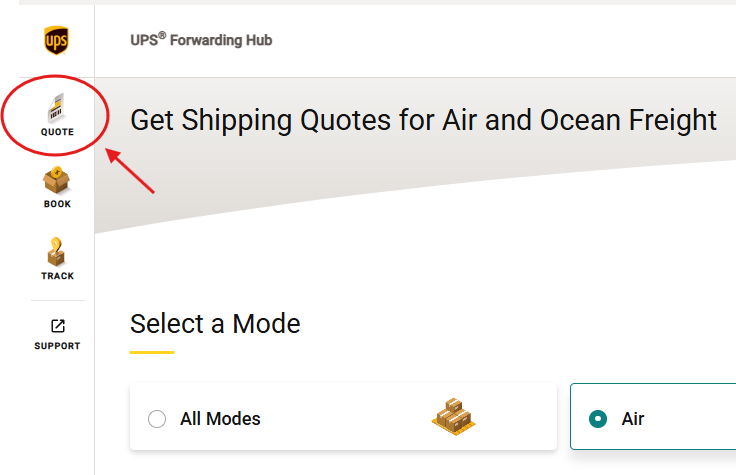
Step 2: Select Your Freight Mode
Choose the transportation option that best matches your shipment:
- Air
- Ocean FCL (Full Container Load)
- Ocean LCL (Less-Than Container Load)
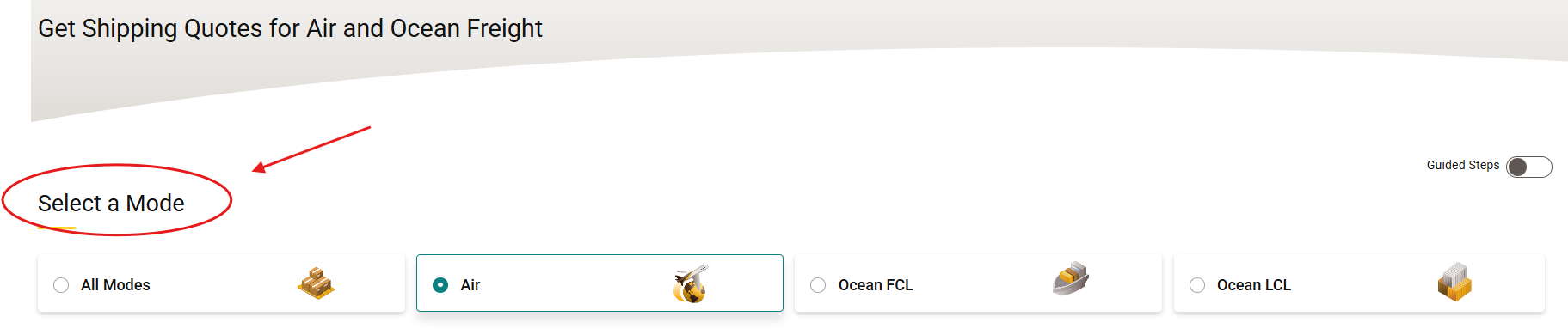
Need to compare options? Select All Modes to view available rates across transportation methods.
Step 3: Enter Origin and Destination
- Enter your shipment origin.
- Enter your shipment destination.
- Select the appropriate city, country, or port from the suggested list.
This information helps identify the available transportation routes and services.
Step 4: Add Cargo Information
Enter the details of your shipment:
- Number of pieces
- Weight
- Dimensions
- Stackable status, if applicable
Tip: Accurate cargo measurements improve quote accuracy and help prevent pricing adjustments later.
Step 5: Select Incoterms and Shipment Preferences
- Choose the applicable Incoterm (such as EXW, FOB, or DAP).
- Review any additional shipment options presented within the quote workflow.
Your selected Incoterm defines responsibilities between buyers and sellers during transportation.
Step 6: View Available Rates
- Select Get Quote or View Rates.
- Review available transportation options.
- Compare:
- Pricing
- Service levels
- Transit times
This allows you to evaluate shipping options and choose the service that best fits your needs.
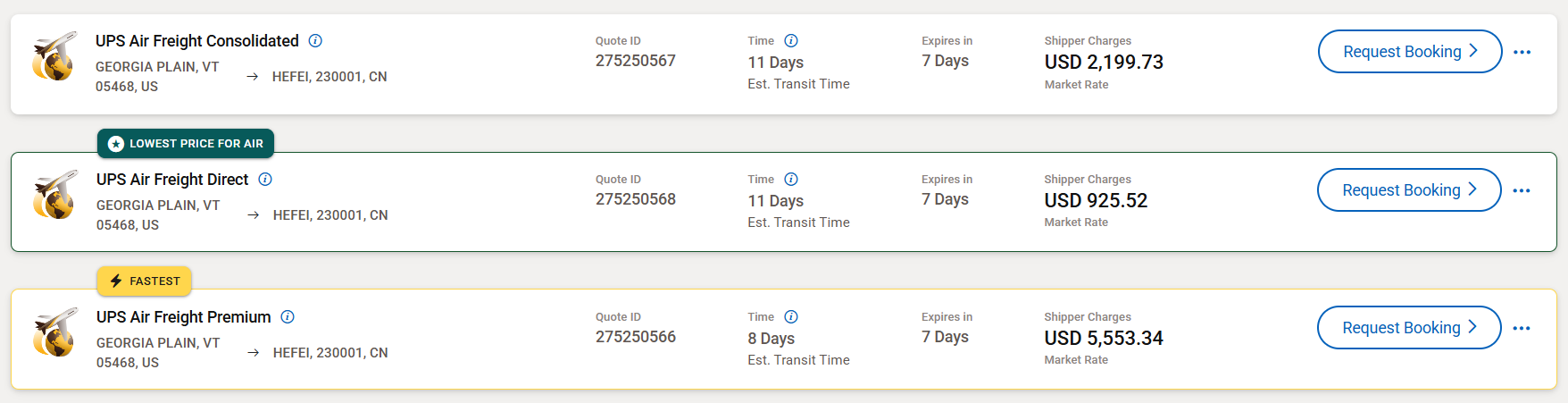
Step 7: Save, Share, or Book
After reviewing your quote, you can:
- Save the quote for future use
- Share the quote with colleagues or stakeholders
- Proceed directly to booking
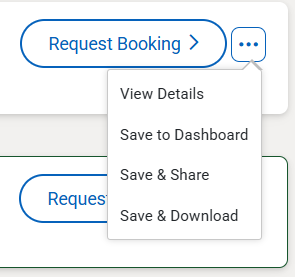
UPS® Forwarding Hub allows saved quotes to be reused later, reducing the need to re-enter shipment details.
What Happens Next?
Once a quote is saved:
- It becomes available from your UPS® Forwarding Hub dashboard.
- You can reopen, modify, or convert the quote into a shipment booking when you're ready.
- The quote can be shared with colleagues or stakeholders for review.
- You proceed from the selected quote into the booking process.
Frequently Asked Questions
Yes. Select All Modes during quote creation to display available freight options across transportation modes.
Why is weight and dimension accuracy important?
Accurate shipment information helps generate the most accurate rate estimates and service recommendations.
Can I book directly from a quote?
Yes. After reviewing your rates, you can proceed directly to booking from the quote results page.
Where can I find saved quotes?
Saved quotes are available through your UPS® Forwarding Hub dashboard.
Was this article helpful?
That’s Great!
Thank you for your feedback
Sorry! We couldn't be helpful
Thank you for your feedback
Feedback sent
We appreciate your effort and will try to fix the article