TABLE OF CONTENTS
What is Required Action for CarriageUnderstanding the 'Action Required' StatusesHow to Resolve a Required Action
Frequently Asked Questions
What is Required Action for Carriage
A Required Action for Carriage (RAC) alert means your shipment needs extra information or documentation before it can continue. You’ll be notified by email and will also see an alert on your UPS Forwarding Hub Dashboard.
How to Find Your Required Actions
Option A: From the Email Notification | |
| 1. Open the Email Notification sent by UPS Forwarding Hub (UFH). | (Click to enlarge) 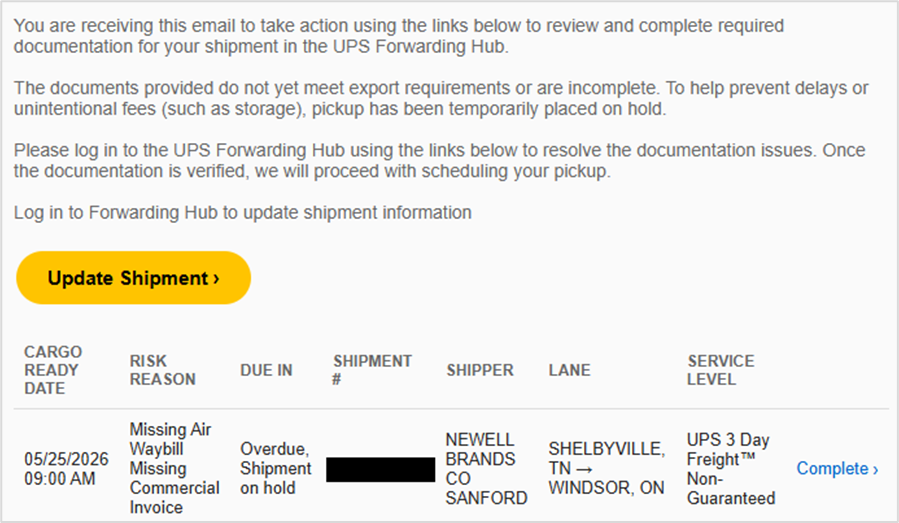 |
| 2. Click the Update Shipment or Complete link. | |
| 3. Log in to UFH. You will see the shipment that needs action. | |
Option B: From the Dashboard | |
1. Login to UPS Forwarding Hub, then go to the Dashboard. | |
2. Click on the Overview tab. | |
3. Locate the Action Required list.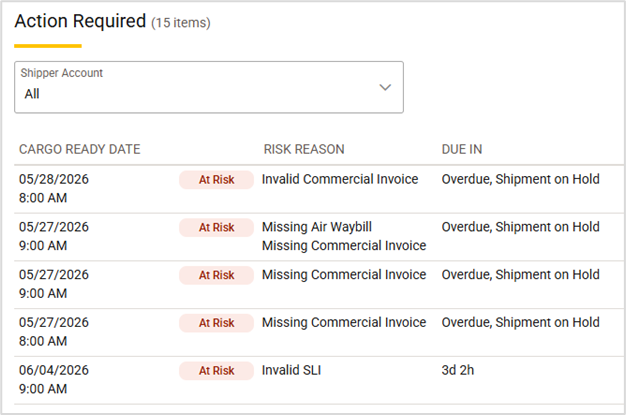 |

Tip: Use the filter dropdown or search field to locate specific shipments.
Understanding the 'Action Required' Statuses
Each shipment in the Action Required list shows a risk reason, along with a due in status. These statuses tell you exactly what needs to be fixed and the current status of the required action and the status of your shipment.
Common Risk Reasons and What to Do:
Once you understand the risk reason it's important to handle unresolved items promptly to avoid your shipment being place on hold.
How to Resolve a Required Action
Once you have opened the shipment and reviewed the Risk Reason, follow these steps to to resolve the issue
1. Open the shipment in the Action Required list on Dashboard.2. Review the Risk Reason to identify the issue.
 3. Click Upload to view the shipment you need to take action on or select the applicable option (i.e. Cancel, Complete Document or Share).
| Tip: Use the filter dropdown or search field to locate specific shipments. |
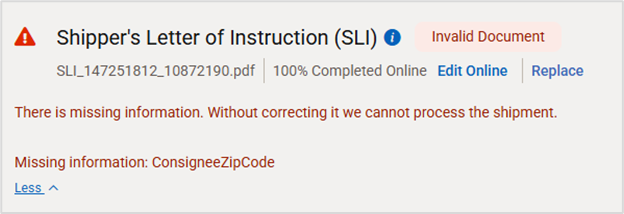
Listed required items will display the checkmark icon  after they are resolved.
5. (Optional) Upload any recommended or additional required documentation: Depending on your shipment’s commodity, route, and destination, you may need to provide more documents (such as Dangerous Goods declarations, Certificates of Origin, or government filings).
6. Print the shipment documents so the pickup driver can sign them upon receipt of the cargo.
7. Once all required documents are complete, click Submit shipment to proceed with processing the shipment.
Frequently Asked Questions |
Q: What happens if I don't complete the required action? A: Your shipment may be delayed or placed on hold until the required information is provided. |
Q: Can I find required actions without the email? A: Yes. Go to Dashboard > Overview > Action Required in UPS Forwarding Hub. |
Q: Do I need to complete all listed actions? A: Yes. All required actions must be completed before your shipment can continue. |
Q: Why are the available actions different for each shipment? A: Actions vary based on shipment type, status, documentation requirements, and country-specific regulations. |
Q: What file types can I upload? A: Supported formats include PDF, DOC/DOCX, XLS/XLSX, and JPG/PNG. |
Q: I can't upload my document. What's wrong? A: Check that the file format is supported, the file size is within system limits, and the file is not password protected. |
Was this article helpful?
That’s Great!
Thank you for your feedback
Sorry! We couldn't be helpful
Thank you for your feedback
Feedback sent
We appreciate your effort and will try to fix the article