Overview
UPS Forwarding Hub may select export brokerage, import brokerage, both, or neither based on your shipment information and saved preferences.
- Export brokerage applies to customs processing at the shipment origin.
- Import brokerage applies to customs processing at the shipment destination.
Review the brokerage selections for each shipment before continuing.
When to Use This
Use this process when you need to:
- Review brokerage options for a shipment.
- Select UPS Customs Brokerage.
- Provide information for a customs broker other than UPS.
- Save default brokerage preferences for future shipments.
Before You Begin
Make sure you have:
- Your shipment information, including the Incoterm.
- Your outside broker's contact information if UPS will not handle brokerage.
Review Brokerage Options for a Quote
- Create a quote and enter the required shipment information.
- Review the available rates.
- Locate Import Customs Brokerage (Market Rate) and Export Customs Brokerage (Market Rate) on the rate results.
- Review the selected brokerage options and displayed rates.
- Select or clear a brokerage option as needed.
- Continue with the selected rate.
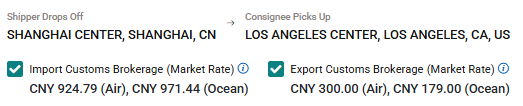 Review the Import Customs Brokerage and Export Customs Brokerage selections and applicable market rates for your shipment.
Provide Outside Broker Information During Booking
Outside broker fields appear when UPS brokerage is not selected for the applicable export or import activity.
Export Brokerage
- On Pickup Info, locate Customs Broker Information.
- Review Export Customs Brokerage.
- If UPS will not handle export customs brokerage, clear the Export Customs Brokerage checkbox.
- Enter your broker information in the fields that appear.
- Continue to the next booking step.
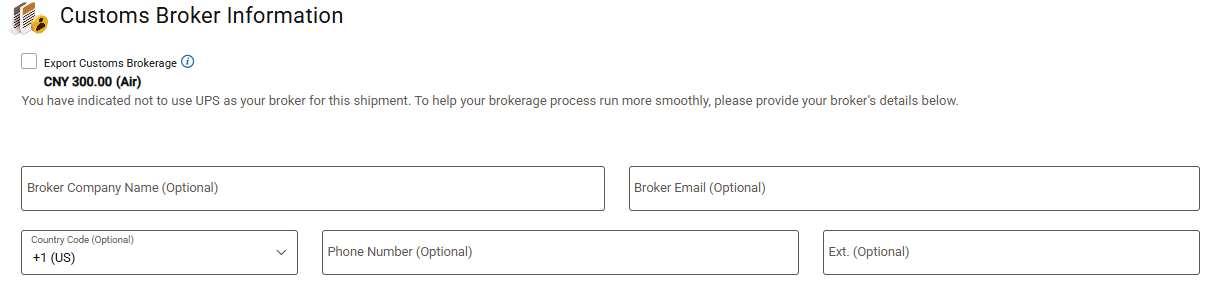
If UPS is not selected for Export Customs Brokerage, enter your outside broker information in the fields that appear.
Import Brokerage
- On Delivery Info, locate Customs Broker Information.
- Review Import Customs Brokerage.
- If UPS will not handle import customs brokerage, clear the Import Customs Brokerage checkbox.
- Enter your broker information in the fields that appear.
- Continue with the booking.
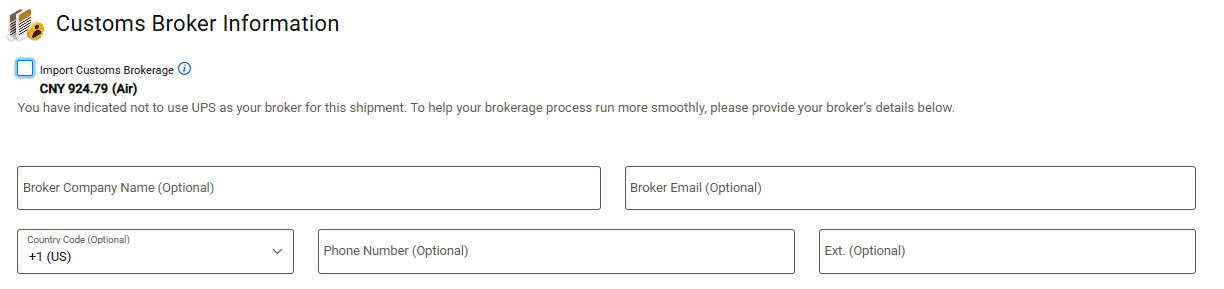 If UPS is not selected for Import Customs Brokerage, enter your outside broker information in the fields that appear.
Note: If you do not see outside broker fields, confirm that UPS brokerage is not selected for the applicable export or import activity.
Save Default Brokerage Preferences
You can save default brokerage preferences for future shipments.
- Open My Profile.
- Select My Preferences.
- Scroll to Insurance & Brokerage.
- Select Yes or No for Add UPS destination brokerage services.
- Select Yes or No for Add UPS origin brokerage services.
- If you select No, enter your broker information in the fields that appear.
- Save your changes.
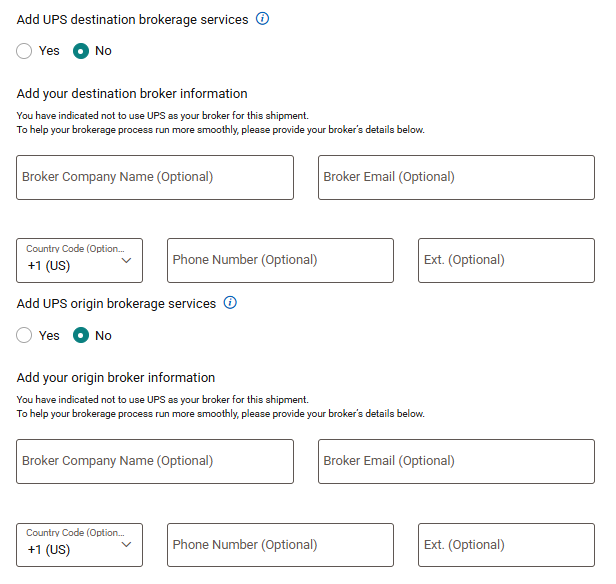
Select No for UPS destination or origin brokerage services to enter default outside broker information for future shipments.
Note: Saved preferences provide a starting selection. Review the brokerage options for each shipment before continuing.
Troubleshooting
I do not see the outside broker fields
Confirm that UPS brokerage is not selected for the applicable export or import activity. Outside broker fields appear when that information is required.
I do not see a brokerage option
Available brokerage options may vary based on your shipment information, route, Incoterm, and supported workflow.
My saved preference does not match the shipment recommendation
Review the shipment-specific brokerage selection before continuing. Shipment information and applicable brokerage rules may affect the recommendation.
Was this article helpful?
That’s Great!
Thank you for your feedback
Sorry! We couldn't be helpful
Thank you for your feedback
Feedback sent
We appreciate your effort and will try to fix the article