Overview
When to Use This
This feature is useful when:
- Final cargo weight differs from the originally booked weight
- Package dimensions change before tendering cargo
- Piece counts are adjusted
- Booking information needs correction before shipment processing begins
What You Can Update
The system opens a pre-filled booking form, allowing you to review and edit the shipment information before submitting changes.
- Weight
- Dimensions
- Piece count
- Other editable shipment details available in the booking form
Before You Begin
Make sure:
- You can view the shipment from your Dashboard or Activity Feed in UFH.
- Updated shipment information is available.
- Any supporting documents can be reviewed again if required after updates.
It's good to understand:
- Pricing remains subject to the original quote terms and validity.
- Document re-submission may be required after updates.
- Complete updates before driver dispatch whenever possible.
How to Edit a Booked Shipment
Step 1: Open Your Shipment
Navigate to your shipment from the Dashboard or Activity Feed.

Step 2: Select Edit Shipment
Choose the Edit Shipment option.
Step 3: Review the Pre-filled Booking Form
The system displays a booking form populated with your current shipment information. Review the details before making changes.
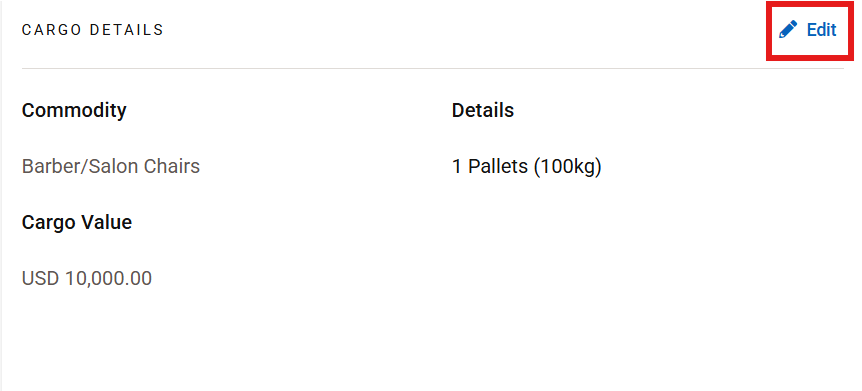
Step 4: Update Shipment Details
Modify the required fields, such as:
- Weight
- Dimensions
- Piece count
- Other editable shipment information
Step 5: Submit Your Changes
Submit the updated information. The system recalculates shipment parameters based on your changes.
What Happens After You Submit Changes
Automatically Accepted Updates
When the shipment update qualifies for automatic processing:
- The original shipment number remains unchanged.
- A confirmation of changes is provided within UPS Forwarding Hub.
- UPS operational teams are notified automatically.
- The original rate remains in effect when changes stay within the allowable threshold.
- If the revised weight qualifies for a lower rate per kilogram, the lower rate is applied automatically.
Thresholds for Automatic Processing
Your shipment update is processed automatically when:
- Billable weight changes remain within ±10%.
- No restricted or non-conforming cargo is added.
- The shipment classification remains unchanged.
In these situations, the shipment can be updated without rebooking.
Updates Not Automatically Accepted
Additional review is required when:
- Weight changes exceed ±10%.
- Restricted cargo is added, such as hazardous materials or lithium batteries.
- Shipment classification changes, such as oversized or non-tiltable cargo.
When these conditions occur:
- You are redirected to a custom quote workflow.
- The shipment is reviewed and re-rated before processing can continue.
Frequently Asked Questions
Why are my changes not updating?
If your changes are not updating, review the following:
- Verify shipment details are correct.
- Check whether the weight change exceeds the ±10% threshold.
- Confirm that no restricted cargo has been added.
Can I update my shipment after shipping documents have been uploaded?
Yes. Shipment updates can still be made after documents have been uploaded. However, you may need to review and upload documents such as the SLI or commercial invoice again after submitting your changes.
Will my shipment number change after I update my shipment?
Will updating my shipment change the quoted price?
What happens if my shipment update exceeds the allowed threshold?
If assistance is still needed, connect with a live agent in UFH (Help icon) or Submit a Ticket.
Related Articles
Was this article helpful?
That’s Great!
Thank you for your feedback
Sorry! We couldn't be helpful
Thank you for your feedback
Feedback sent
We appreciate your effort and will try to fix the article